
tracking code for google analytics
Mastering the Tracking Code for Google Analytics GA4
Posted on Jan 15, 2026
The Google Analytics tracking code is the piece of the puzzle that connects your website to Google's incredibly powerful data platform. For GA4, this is usually your Measurement ID (which looks something like G-XXXXXXXXXX) for simple setups or the full gtag.js script if you're doing a manual installation. This code is what lets you understand how guests behave on your site, track bookings, and ultimately, get more of them.
Why GA4 Tracking Is Your Key to More Direct Bookings
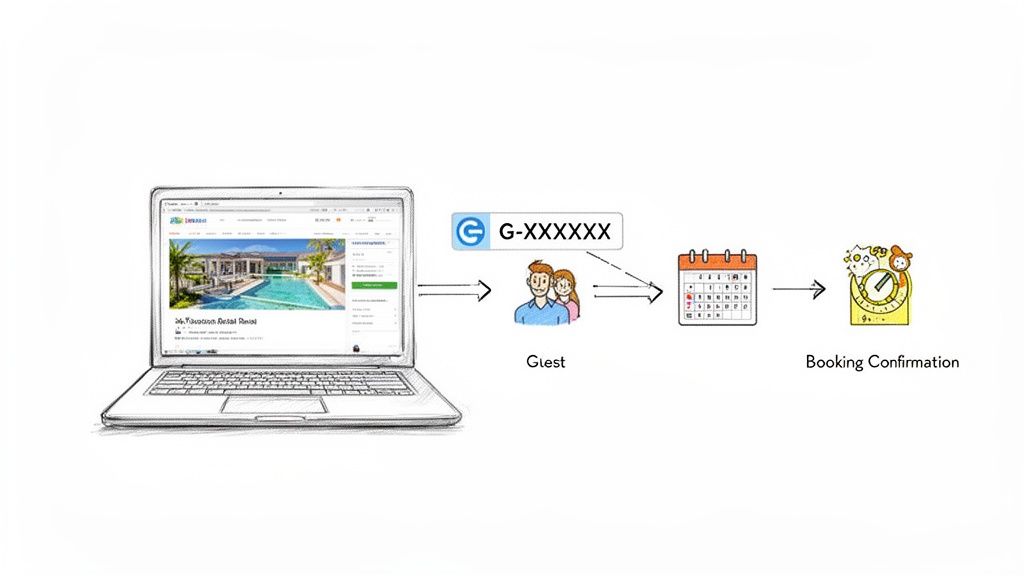
In the hyper-competitive short-term rental market, the goal is simple: secure more direct bookings to boost your revenue and build a lasting brand. Your Google Analytics 4 (GA4) tracking code is probably the single most important tool you have to make that happen. Think of it as a bridge connecting what visitors do on your site with data you can actually use.
Without it, you're flying blind. Sure, you might know how many people visit your site, but you have no idea why they leave or what finally convinces them to book. This little snippet of code is what unlocks those game-changing insights.
From Vague Traffic to Actionable Insights
Getting the GA4 tracking code set up correctly transforms abstract traffic numbers into a clear story about your potential guests. It helps you answer the big business questions that lead directly to more money in your pocket.
- Which marketing channels are really working? Finally see if your paid social ads, email newsletters, or blog posts are generating actual reservations, not just empty clicks.
- Where are people dropping off? Pinpoint the exact weak spots in your booking funnel. Do users bail when they see the final price, or are they getting tripped up on a specific page?
- What content actually drives bookings? Figure out which property pages or blog articles grab the most attention, so you can create more of what your audience loves.
This kind of detail is the bedrock of effective marketing attribution—the process of giving credit to the marketing touchpoints that lead to a booking. You can dive deeper into the fundamentals in our complete guide on what is marketing attribution.
The mandatory switch from Universal Analytics to GA4 wasn't just a technical update; it was a fundamental shift towards a more event-based, user-centric model. This is a massive opportunity for vacation rental managers to gain deeper insights into the entire guest journey.
The Great Analytics Migration
The move to GA4 was a huge deal for the entire web. As of 2025, over 14.2 million websites around the world have integrated the GA4 tracking code, a massive jump since its 2020 launch. This was all kicked into high gear by Google's forced sunset of the old Universal Analytics (UA) on July 1, 2023.
That shift pushed over 90% of marketers into GA4's world, though frankly, many are still getting their bearings with the new platform. For businesses on specific platforms, knowing how to properly integrate GA4 with tools like Wix Bookings is non-negotiable for getting a complete picture of performance. This guide will give you a clear path for connecting your website traffic to the data that truly grows your business.
How to Find Your GA4 Tracking Code and Measurement ID
Before you can get any data flowing, you first need to find the right snippet or ID inside your Google Analytics account. This is a common sticking point because GA4 gives you two main options: the simple Measurement ID or the full Global Site Tag (gtag.js) script.
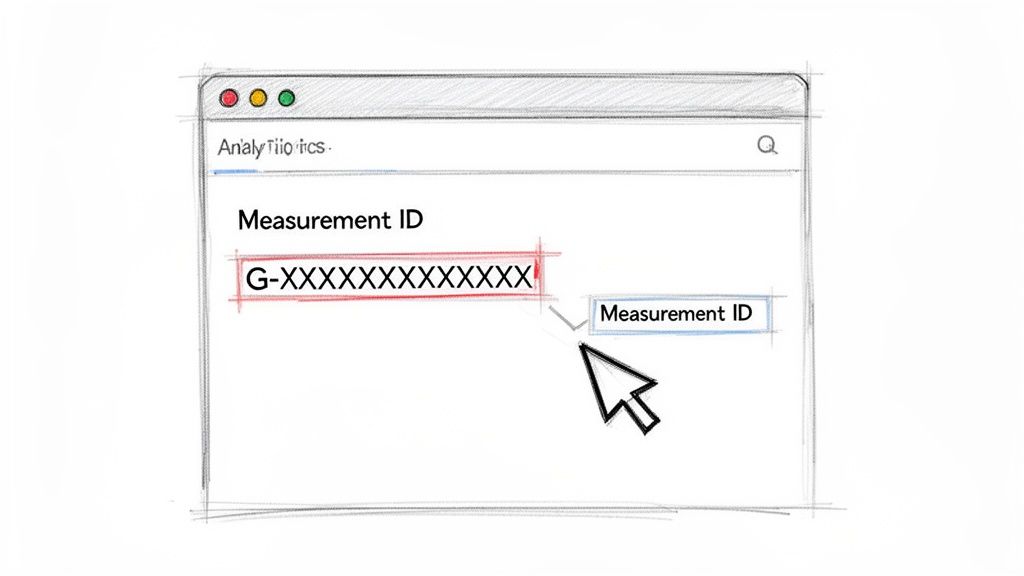
Here's an easy way to think about it. The Measurement ID is like a simple mailing address. Lots of website platforms and plugins just need this address to know where to send your website's data.
The Global Site Tag, on the other hand, is the full set of delivery instructions. It's a block of code that tells web browsers exactly how to package and send that data over to Google.
So, which one do you need? It really just depends on how you plan to add it to your site.
Measurement ID vs Global Site Tag (gtag.js)
To make it dead simple, I've put together a quick table to help you decide which identifier to grab. This choice will determine your next steps, so it's a good idea to be clear on it from the start.
| Identifier Type | What It Is | When to Use It for Your STR Site |
|---|---|---|
| Measurement ID | A unique identifier for your data stream, always starting with "G-" (like G-XXXXXXXXXX). | Use this if your website platform (like hostFront, Shopify, or WordPress with a plugin) has a specific field for your Google Analytics ID. It's the easiest method by far. |
| Global Site Tag (gtag.js) | A full JavaScript code snippet that you place in the <head> section of your website's HTML code. |
Use this if you are manually adding the code to a custom-built website or if your platform requires you to paste in the full script. It offers more customization options down the line. |
Most vacation rental managers using a common website builder will only need to copy their Measurement ID. The platform or a plugin you're using will handle the rest of the code for you behind the scenes.
Navigating to Your GA4 Tracking Info
Okay, let's walk through the exact clicks to find these identifiers. The process is pretty much the same whether you're setting up a brand-new property or just grabbing the code for one that's already running.
First, log in to your Google Analytics account. If you’re creating a new property from scratch, GA4 will walk you through setting up a "Data Stream." For your vacation rental website, you will always want to choose the Web platform.
Once you have a web data stream set up, here's how to find your info:
- Click the Admin gear icon in the bottom-left corner.
- In the Property column, double-check that you have the right GA4 property selected.
- Under the Data collection and modification heading, click on Data Streams.
- You should see your website's data stream in the list—click on it.
This screen is your command center for all things tracking. Right at the top, you'll see your Measurement ID. If a plugin or your site builder is asking for a "GA4 ID" or something similar, this "G-" string is exactly what you need to copy and paste.
Pro Tip: Your Measurement ID is the key that connects your website to your GA4 reports. While it's not a security risk if someone sees it, pasting the wrong ID means your data ends up in the wrong place—or worse, nowhere at all. Always double-check it!
Now, for those who need the entire code snippet, just look for the View tag instructions button near the bottom of this same page. Clicking it opens up a new panel with installation guides.
From there, select the Install manually tab.
That block of code you see is the full tracking code for Google Analytics, ready to be placed on every page of your site. Now you've got both your Measurement ID and your complete gtag.js snippet, and you're ready for the next step.
Putting the Tracking Code on Your STR Website
Alright, you've got your Measurement ID or gtag.js snippet ready to go. Now for the crucial step: connecting your STR website to Google Analytics so the data can start rolling in. The great news is you have a few really solid options, and none of them require you to be a coding wizard.
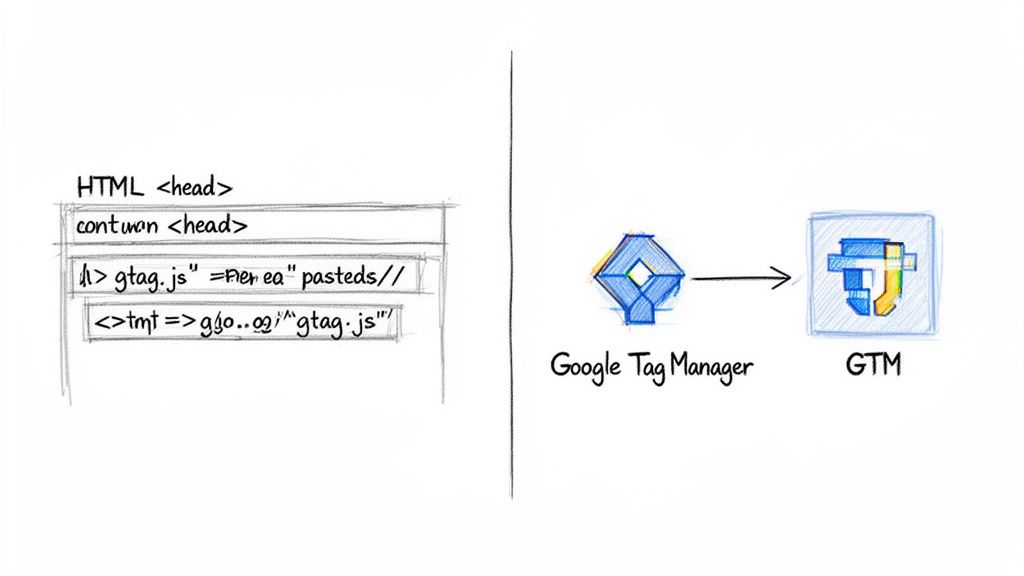
We'll walk through the most common ways to get this done. We'll start with simple plugin integrations for platforms like WordPress and then dive into the two main hands-on approaches: adding the code directly or using Google Tag Manager (GTM). Which one you pick really just depends on your website's setup and how big you plan to go with your marketing down the road.
The Easiest Route: Website Platforms and Plugins
For most vacation rental managers, this is the quickest and cleanest way to get your analytics hooked up. Almost all modern website builders and content management systems (CMS) have a built-in spot for Google Analytics 4.
These platforms get it—their users need this data. They usually give you a simple field in your website’s settings where you just copy and paste your Measurement ID (the one starting with "G-"). That’s it. The platform takes care of injecting the code onto every page for you.
- WordPress: If you're on WordPress, a plugin like GA4WP or MonsterInsights makes this a total cakewalk. Just install the plugin, find its settings, and drop in your Measurement ID.
- Shopify: Shopify has this built right in. You’ll find it under Online Store > Preferences, where there's a dedicated box for your Google Analytics account.
- hostFront: Platforms designed specifically for STRs, like hostFront, make this even simpler. You'll usually find a field for your GA4 ID under your site's marketing or integration settings.
This method is perfect for getting started quickly and ensuring it's done right. But as your marketing gets more sophisticated, you might find you need more control than what a basic plugin can offer.
Method 1: Manually Placing the gtag.js Snippet
If your website is custom-built or your platform doesn't have that easy integration field, you can add the tracking code for Google Analytics straight into your site’s code. This just means pasting the entire gtag.js snippet you copied earlier into the <head> section of your website’s HTML.
This sounds more technical than it really is. The <head> section is just a container at the top of every webpage's code that holds important setup info, like tracking scripts. Putting your GA4 code here makes sure it loads on every single page a guest visits.
Crucial Tip: When adding code by hand, especially on a platform like WordPress, it is absolutely vital to use a "child theme." If you don't, the next time your main website theme gets an update, it could completely erase the tracking code you just added. Your data would just stop, and you might not even notice.
This direct approach is clean and doesn't depend on any other plugins. The big downside, though, is that every time you want to add another tracking script—like a Facebook Pixel or a heat mapping tool—you have to dig back into the code. This can get messy fast and increases the chance of accidentally breaking something. To see how all these pieces fit into the bigger picture, take a look at our guide on the core stages in website development.
Method 2: Using Google Tag Manager
This brings us to the most powerful and flexible method by far: Google Tag Manager (GTM). Think of GTM as a digital toolbox that you install on your website just one time. From then on, instead of adding every new tracking tag directly to your site's code, you just put them inside this toolbox.
Here’s how it works:
- You install the GTM container code on your website once.
- Then, inside your GTM account, you create a new "tag" specifically for Google Analytics.
- You paste your GA4 Measurement ID into that tag.
- You set a simple rule telling the tag to "fire" on all pages.
From that moment on, you manage every single tracking tag from the GTM dashboard. Want to add a LinkedIn Insight Tag? Do it in GTM. Need to track clicks on your "Book Now" buttons? You can set that up in GTM, too. You never have to touch your website's actual code again.
Why Google Tag Manager Is the Best Long-Term Choice
While a plugin is the fastest way to start and manual installation is straightforward, GTM is the professional standard for a reason. It truly sets you up for long-term marketing success by giving you total control over your data.
| Feature | Direct Code Installation (gtag.js) | Google Tag Manager (GTM) |
|---|---|---|
| Initial Setup | Simple copy-and-paste into site code. | Requires setting up a GTM account and installing its container snippet. |
| Adding New Tags | Requires editing website code every time. | New tags are added through the GTM interface, with no code changes needed. |
| Flexibility | Limited. You are tied to the base functionality of the script. | Extremely high. GTM can manage dozens of marketing and analytics tags. |
| Risk of Errors | Higher risk of site errors or code deletion during theme updates. | Lower risk. All tags are managed in a separate, controlled environment. |
| Best For | Simple, custom-coded sites with minimal tracking needs. | Anyone who plans to grow their marketing efforts and use multiple tracking tools. |
Spending a little extra time to learn GTM now will pay you back tenfold later. It keeps all your tracking in one place, can make your site faster by managing how scripts load, and lets you deploy advanced tracking without having to wait for a developer. For any serious STR manager, it's the clear winner.
Tracking What Matters Most: Direct Bookings and Guest Paths
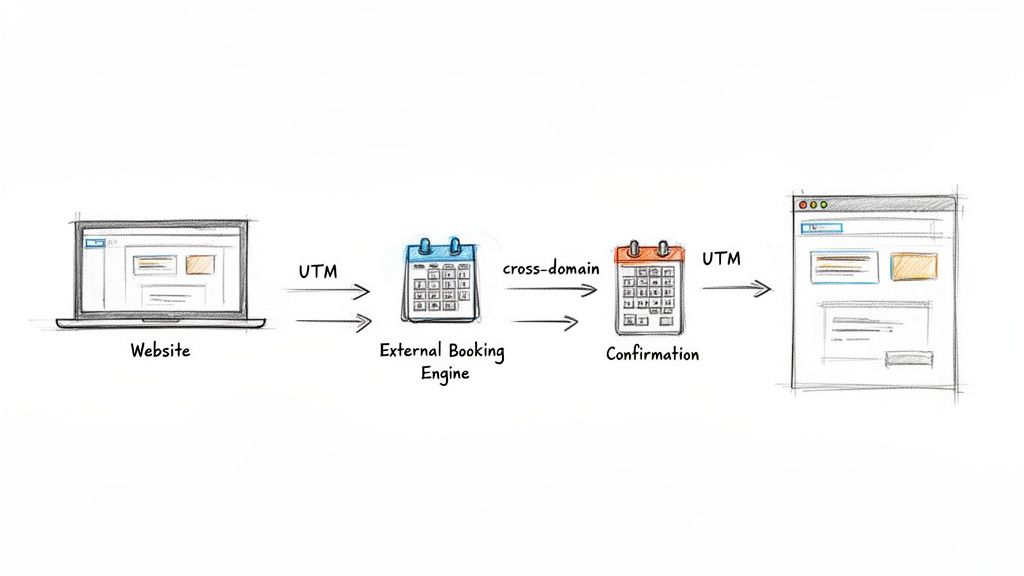
Getting the tracking code for Google Analytics on your site is a great first step, but that’s all it is—a first step. Now it’s time to make that data work for you and start answering the big questions that actually impact your bottom line. We need to go beyond just counting page views and start measuring the actions that define a guest's journey to booking.
These are the moments that truly matter: a guest looking at a specific property, adding dates to their cart, starting to check out, or hitting that final "confirm booking" button. By tracking these specific events, GA4 transforms from a simple traffic counter into a powerhouse for understanding guest behavior and optimizing your entire booking funnel.
Solving the Cross-Domain Tracking Headache
One of the most common—and frustrating—challenges for vacation rental managers is dealing with a disjointed guest journey. A potential guest finds your beautiful, branded website, but when they go to book, they're whisked away to a separate, third-party booking engine.
Without the right setup, Google Analytics sees this as two completely separate visits. It looks like one person "left" your site and a brand-new user magically appeared on the booking engine. This completely shatters your ability to see the full path to a conversion, making it impossible to know which of your marketing efforts actually led to that booking.
The fix is cross-domain tracking. By configuring this in your GA4 settings, you’re essentially telling Google that your main website and your booking engine are two parts of the same whole.
This allows GA4 to follow a single user across both domains, stitching their journey together into one cohesive session. You finally get to see the complete, uninterrupted picture of how a visitor becomes a paying guest.
Setting it up is a simple but crucial step: just add your booking engine's domain to the "Configure your domains" list inside your GA4 Web data stream settings. It’s a small technical tweak that makes a massive difference in the accuracy and value of your data.
Tracking Key Guest Actions as Events
With GA4’s event-based model, you can track just about any interaction on your website. Instead of just knowing someone landed on the "Beachfront Villa" page, you can create custom events to see when they clicked "Check Availability," viewed the photo gallery, or started the booking process.
Here are a few essential events every STR manager should be tracking:
view_property: Fires when someone looks at the details page for a specific property.begin_checkout: Triggers the moment a guest starts the booking process.add_payment_info: Fires when a user moves to the payment step.purchase: This is the big one. It's triggered when a booking is confirmed and should always include parameters for the booking value and currency.
Setting these up, typically through Google Tag Manager, gives you a crystal-clear view of your booking funnel. You can see precisely how many people view properties versus how many actually begin the checkout process, helping you pinpoint exactly where you're losing potential guests. Understanding this behavior is fundamental if you want to improve website conversion rate.
Unmasking Your Marketing ROI with UTM Parameters
Ever wonder if that weekly email newsletter or your paid Facebook ad campaign is really bringing in bookings? Without proper campaign tracking, you're just guessing. This is where UTM parameters come in.
UTM parameters are simple tags you add to the end of your URLs to tell Google Analytics exactly where a visitor came from. Think of them as a digital name tag for every click, letting you trace a booking all the way back to the specific ad, email, or social media post that brought the guest to you.
A URL with UTM parameters looks something like this:yourwebsite.com/properties/beach-house?utm_source=facebook&utm_medium=cpc&utm_campaign=summer_sale
This immediately tells you the visitor came from:
- Source (
utm_source): Facebook - Medium (
utm_medium): Cost-Per-Click (meaning a paid ad) - Campaign (
utm_campaign): Your Summer Sale promotion
When a booking comes through from this link, you'll see in GA4 that the "summer_sale" campaign on Facebook generated $X in revenue. This is a complete game-changer. Suddenly, you're not just spending money on marketing; you're investing it with a clear, measurable return. You can double down on what works and cut the campaigns that aren't pulling their weight.
By consistently using UTMs across all your marketing—from social media posts to email signatures—you build a rich dataset that connects every dollar spent to every dollar earned. This provides the clarity you need to grow your direct booking revenue strategically and separates a professional, data-driven strategy from amateur guesswork.
How to Verify Your Setup and Fix Common Problems
You’ve installed the tracking code, but the job isn't quite finished. Before you pop the champagne, you need to be 100% certain that data is actually flowing into your GA4 property.
Skipping this final quality check is like launching a marketing campaign without checking if the "Book Now" button works—it leads to missing data, flawed decisions, and a whole lot of frustration down the road.
Fortunately, GA4 has powerful, built-in tools to see your data come in live, so you know everything is working exactly as expected. We'll walk through the two essentials: the Realtime report and the more granular DebugView.
Using the Realtime Report for a Quick Check
The quickest way to see if your basic setup is working is the Realtime report. It’s designed to show you what’s happening on your site within the last 30 minutes.
Just head over to your GA4 property and click on Reports > Realtime. Now, open a new browser tab and visit your own website. Within a minute, you should see the user count on the Realtime map jump by one, likely pinpointing your geographic location. That's the first sign of life!
As you click around your site, you’ll see event cards populate with page_view and session_start events. This simple test confirms the basic connection is live and your tracking code for Google Analytics is sending data.
Diving Deeper with DebugView
For a more detailed, event-by-event confirmation, DebugView is your best friend. It gives you a live stream of every single event and parameter being sent from your browser to GA4. This is absolutely critical for verifying that your booking conversion tracking is firing correctly.
To get it running, you have two main options:
- Using Google Tag Manager: Just enable GTM's "Preview" mode on your site. This automatically pushes your activity into DebugView—super simple.
- Using a direct code install: The easiest way is to install the official Google Analytics Debugger extension for Chrome. Once you flip it on, it starts sending your data to the debug stream.
With debug mode active, navigate to Admin > DebugView in GA4. Now, go through your booking funnel on your actual website. As you perform those actions, you should see events like view_property and begin_checkout appear in the timeline. This is how you confirm your custom conversion tracking is working perfectly.
Think of it this way: The Realtime report tells you, "Someone is at the front door." DebugView tells you, "That person just looked at the master bedroom, checked the kitchen, and is now signing the guestbook."
A Troubleshooting Checklist for Common Issues
Sometimes things don't work on the first try. It happens. If you're not seeing data or your numbers look strange, run through this checklist to diagnose the most common problems.
- Duplicate Tracking Codes: This is a frequent culprit for inflated data, like seeing double the pageviews you expect. It usually happens when you have a direct
gtag.jsinstallation and a CMS plugin both firing the same GA4 tag. Just pick one method and remove the other. - Incorrect Measurement ID: A simple typo can send your data to the wrong property or into the digital void. Double-check that the G-XXXXXXXXXX ID on your site perfectly matches the one in your GA4 data stream settings.
- Code in the Wrong Place: Your
gtag.jstracking snippet has to be placed within the<head>section of your website’s HTML. If it’s stuck in the<body>or footer, it might not load in time to capture every user interaction, which means lost data. - Cross-Domain Tracking Not Configured: Seeing a huge drop-off when users move from your main site to your booking engine? This is almost always the cause. Make sure you’ve added your booking engine's domain to the cross-domain tracking configuration in your data stream settings.
- UTM Parameters Are Incorrect: If your campaign data isn't showing up, your UTMs might be formatted incorrectly or inconsistently. Following a consistent structure is key. For a complete refresher, check out our guide on UTM best practices to ensure every campaign is tracked flawlessly.
Got Questions About Your GA4 Tracking Code?
You’re not alone. When we talk with vacation rental managers, a few questions about the GA4 tracking code pop up over and over again. Let's clear up some of the most common points of confusion you might run into while getting your analytics dialed in.
Can I Use the Same GA4 Tracking Code on My Website and Booking Engine?
Yes, and you absolutely should. Using the same GA4 Measurement ID on both your main website and your booking engine is critical. It’s the only way to track a guest's entire journey from the moment they land on your site to the second they confirm their booking.
But here’s the catch: just installing the same code isn't enough. You also have to set up cross-domain tracking inside your GA4 data stream settings. This is a crucial step that tells Google, "Hey, even though mycoolrental.com and book.mycoolrental.com are different domains, they belong to the same user session."
Without cross-domain tracking, it’s like this: a guest clicks your "Book Now" button and, in Google's eyes, they simply disappear from your website. A second later, a brand new, mysterious visitor appears out of nowhere on your booking engine. Setting this up correctly stitches that journey back together into a single, cohesive story.
How Does the GA4 Tracking Code Work with Privacy Laws Like GDPR?
GA4 was definitely built with privacy in mind. It comes with features like IP address anonymization turned on by default, which is a big help for compliance. However, just installing the tracking code for Google Analytics doesn't automatically make your website compliant with laws like GDPR or the CCPA.
You're still responsible for adding a cookie consent banner to your site. This banner has to get explicit permission from the user before any of your GA4 tracking scripts are allowed to fire. If a visitor says no, those scripts shouldn't run, and you won't collect their data. It's a non-negotiable part of playing the analytics game today.
What Is the Difference Between a Measurement ID and a Property ID?
This one trips a lot of people up, but for website owners, it's pretty simple.
- Measurement ID (G-XXXXXXXXXX): This is the ID for a specific data stream—in your case, your website. Think of it as the mailing address you give your website so it knows exactly where to send all its tracking data.
- Property ID: This is a much broader identifier for your entire GA4 property. A single property can hold multiple data streams, like one for your website, one for an Android app, and another for an iOS app.
When you're setting up tracking for your vacation rental website, you will almost always be working with the Measurement ID. That's the "G-" string that different plugins and website integrations will ask for.
Ready to turn these insights into more direct bookings? hostAI uses advanced AI to build intelligent websites and run automated marketing campaigns that drive revenue. Stop guessing and start growing with a platform designed for STR managers. Discover how hostAI can transform your business.