
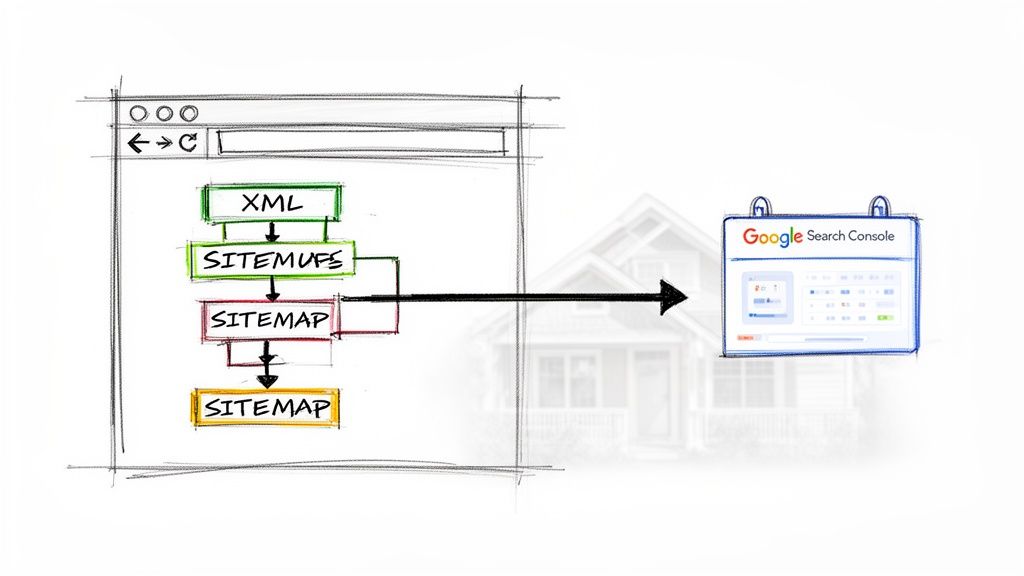
add xml sitemap to google
Add XML Sitemap to Google for Faster Site Indexing
Posted on Feb 2, 2026
Submitting your XML sitemap to Google is how you directly tell the search engine which pages on your site truly matter. You do this through Google Search Console by simply providing the URL of your sitemap file—usually something like yourdomain.com/sitemap.xml—to kickstart faster and more complete crawling.
Why Your Sitemap Is Your Most Important Map
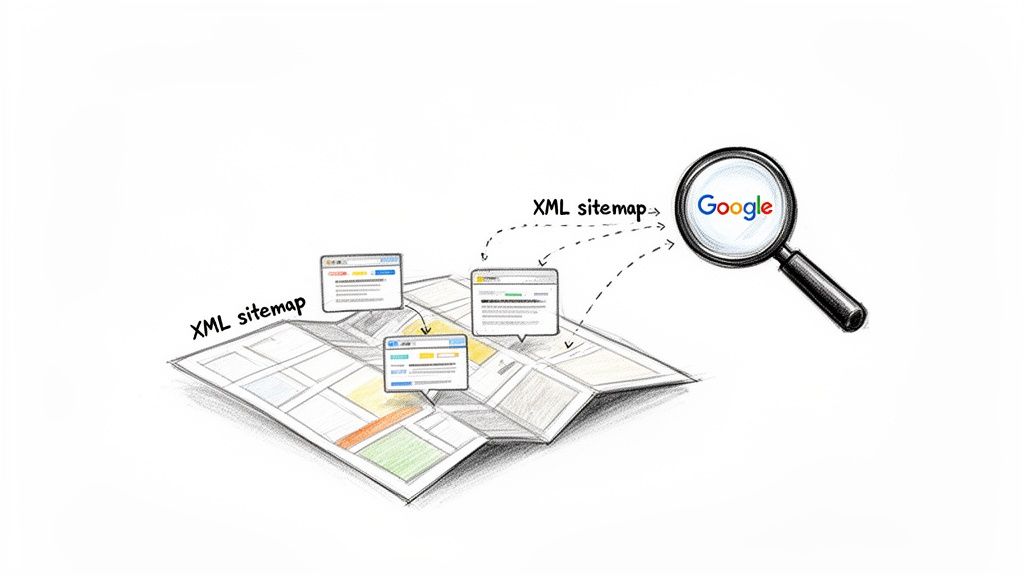
Before you actually add an XML sitemap to Google, it's important to grasp why this one file carries so much weight. Think of it as a detailed blueprint you hand-deliver to Google's crawlers. For a vacation rental manager, this isn't just some technical box to check; it’s a strategic tool that maps out every single critical page on your website.
Without a sitemap, Google's bots just wander around your site by following links, which can be pretty inefficient. They might completely miss your newest property listings, updated availability calendars, or those valuable neighborhood guides you've tucked away.
The Real-World Impact on Your Bookings
Imagine you’ve just added a stunning portfolio of five new beachfront properties. You’ve invested in professional photography and written amazing descriptions, but weeks go by, and they're still invisible on Google. This happens all the time when new pages aren't linked prominently from older, more established parts of your site. Google simply doesn't know they exist.
A sitemap solves this problem head-on. It explicitly tells Google: "Hey, here are all my important pages, including these brand new ones. Please crawl and index them." This proactive communication is vital in a dynamic industry like ours, where inventory is constantly changing. The faster Google indexes your new listings, the faster they can start bringing in direct bookings.
A well-structured sitemap ensures that search engines don't just find your homepage, but every single bookable property. It’s the difference between a potential guest finding your brand versus finding an Online Travel Agency (OTA) first.
Key Benefits of a Sitemap for STR Websites
Ultimately, having a sitemap is non-negotiable if you want to boost organic visibility and drive more revenue. This little file plays a huge role by:
- Accelerating Indexing: It helps Google find and list your new properties, special offers, and blog posts way faster than waiting for them to be discovered organically.
- Improving Crawl Efficiency: It makes sure Google's resources are spent crawling your most important pages, not getting lost in the weeds of your site.
- Providing Context: Your sitemap can include metadata about when pages were last updated—a powerful signal for dynamic content like availability and pricing.
For more insights on this topic, you can learn about improving your vacation rental SEO in our detailed guide.
Finding or Creating Your XML Sitemap File
Before you can get your sitemap working for you in Google Search Console, you actually need to have the file. The good news is, you probably already do.
If you’re using a modern website builder or a specialized platform for your vacation rentals, an XML sitemap is almost always generated for you automatically. It's a huge time-saver. For instance, hostAI users don't have to lift a finger—the platform creates and maintains the sitemap behind the scenes. Every time a new property goes live or a listing gets updated, the sitemap is refreshed instantly to reflect the change.
Locating Your Sitemap on Common Platforms
Even if your website isn't on a platform like hostAI, finding your sitemap is usually pretty simple. Most systems stick to a standard URL structure. You just have to try tacking a few common file paths onto the end of your domain.
Give these a shot in your browser:
- /sitemap.xml
- /sitemap_index.xml
- /sitemap.php
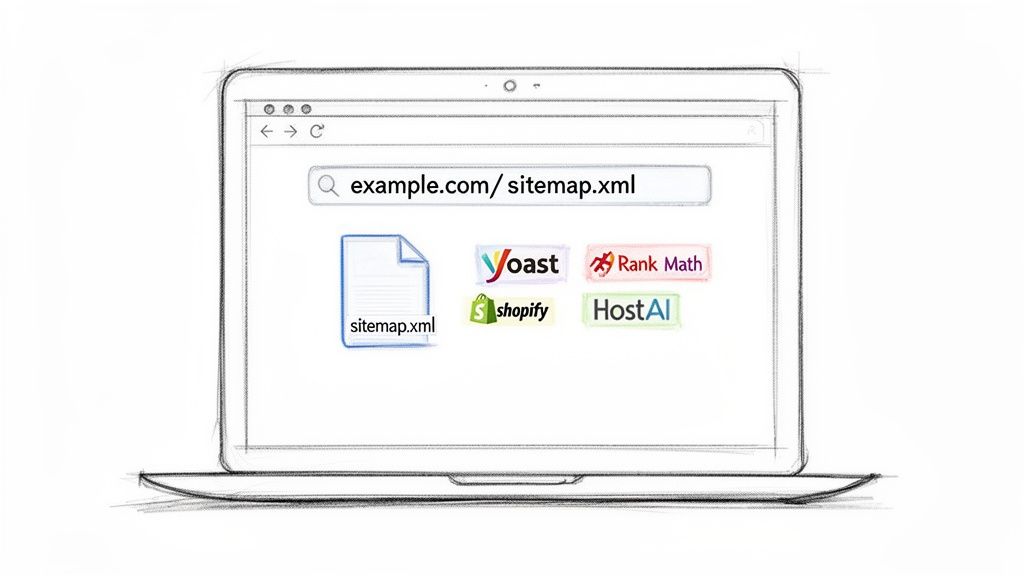
So, if your site is www.your-getaway-villas.com, you’d navigate to www.your-getaway-villas.com/sitemap.xml. If you see a wall of code with a list of your website's URLs, congratulations—you've found it!
Heads Up for WordPress Users: If you're running your site on WordPress and using a popular SEO plugin like Yoast or Rank Math, your sitemap will almost certainly be at
/sitemap_index.xml. These tools often create a "sitemap index," which is basically a sitemap that links out to other, more specific sitemaps (like one for pages, another for blog posts, and a separate one for your property listings).
To make it even easier, here's a quick reference table for where you'll typically find your sitemap on various platforms.
Common Sitemap Locations by Platform
| Platform | Typical Sitemap URL Format |
|---|---|
| hostAI | yourdomain.com/sitemap.xml |
| WordPress (with Yoast/Rank Math) | yourdomain.com/sitemap_index.xml |
| Shopify | yourdomain.com/sitemap.xml |
| Wix | yourdomain.com/sitemap.xml |
| Squarespace | yourdomain.com/sitemap.xml |
This isn't an exhaustive list, but it covers the major players. Just replace yourdomain.com with your actual website address.
Creating a Sitemap for Custom Websites
What if you have a completely custom-built website that doesn't have this feature built-in? No problem. You'll just need to create the sitemap yourself. While that might sound intimidating, there are plenty of free online tools that handle all the technical work for you.
Tools like XML-Sitemaps.com or Screaming Frog's SEO Spider can crawl your entire site and spit out a perfect sitemap file for you to upload. For a more detailed walkthrough, this resource does a great job explaining how to create a sitemap for your website from scratch.
Just keep in mind that Google has some hard limits: a single sitemap file can't contain more than 50,000 URLs and can't be larger than 50MB when uncompressed. For vacation rental managers with portfolios anywhere from 100 to 5,000 properties, this is more than enough breathing room.
With your sitemap URL in hand, you're all set for the next step. And if you're just getting started and feel like you've missed a step, our complete guide on how to build a vacation rental website is a great place to build that solid foundation.
Connecting Your Website to Google Search Console
Before you can hand Google the blueprint to your website, you need to prove you actually own the property. This is where Google Search Console (GSC) comes into play. Think of it as opening a direct line of communication with the search engine; it's the official channel where you’ll add your XML sitemap to Google.
Setting up GSC is a quick, one-time task that unlocks a goldmine of data about your site's performance. The first move is to head over to the Google Search Console website and sign in with your Google account. You'll then be prompted to add your website as a new "property."
Verifying Your Website Ownership
To keep your data secure, Google needs to confirm you're the legitimate owner of the website. They offer a few ways to do this, but for most vacation rental managers, the fastest and simplest route is using the HTML tag.
How does it work? Google gives you a small snippet of code—a meta tag—that you’ll place in the header section of your website. It’s like getting a special key from Google and putting it in a specific lock on your site that only Google can see.
If you're using a platform like hostAI, this part is incredibly straightforward. You won't need to dig around in complex theme files. Instead, you can usually find a dedicated field in your site settings, often labeled something like "Header Code" or "Custom Scripts," where you just paste the verification tag.
Once you’ve pasted the code into your site's header and saved the changes, pop back over to Google Search Console and hit the "Verify" button. Google will do a quick scan of your site for the tag. When it finds it, your ownership is confirmed, and you’ll get full access to your GSC dashboard.
Verifying your site isn't just a technical hurdle; it’s the crucial first step that grants you access to powerful tools. Without verification, you can't submit a sitemap, monitor your indexing status, or see how guests are finding your properties in search results.
With your website now officially connected and verified, you've established the essential link between your online presence and Google's indexing system. This connection is the portal you'll use to submit your sitemap and monitor its effectiveness. Now you're ready for the main event: telling Google exactly where to find your site’s most important pages.
How to Submit Your Sitemap to Google
Alright, you've got your sitemap URL and your site is verified in Google Search Console. This is the final—and most satisfying—part of the process. You're about to formally hand Google the blueprint to your website, making sure it knows exactly which property pages, blog posts, and neighborhood guides to crawl.
The good news is that the process to add an XML sitemap to Google is straightforward and takes less than a minute. Let's walk through it.
Navigating to the Sitemaps Report
First, log into your Google Search Console account. Make sure you've selected the correct property (your website) from the dropdown menu in the top-left corner.
Once you're on the main dashboard for your site, look for the “Sitemaps” report in the navigation panel on the left. You'll find it tucked under the "Indexing" section. This is your command center for everything related to sitemaps. If you've never submitted one before, the page will be blank. Otherwise, you'll see a list of any sitemaps you've submitted in the past and their current status.
The Submission Process Step-By-Step
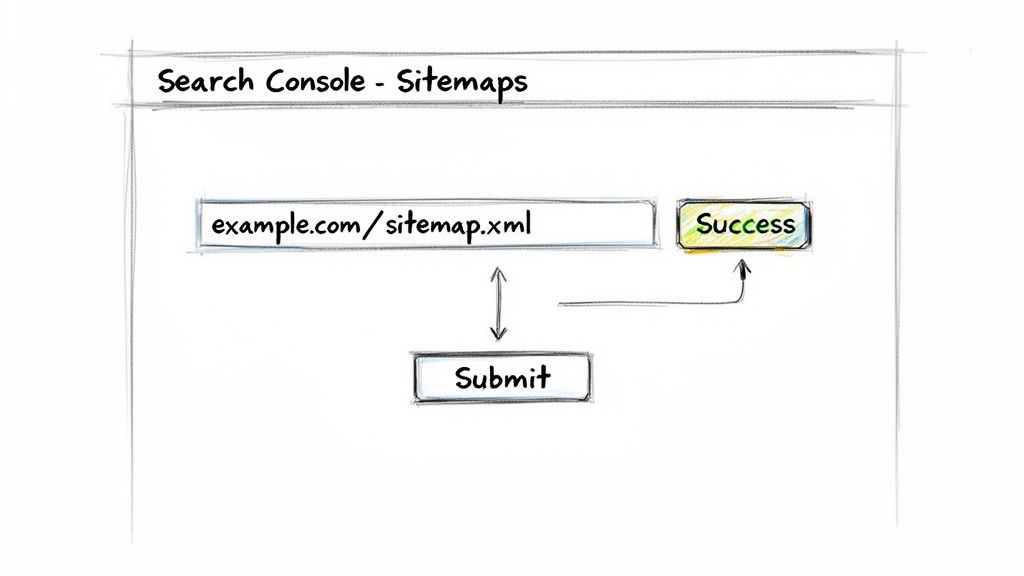
At the top of the Sitemaps report, you'll spot a field labeled “Add a new sitemap.” Your domain is already filled in, so you just need to paste the last part of your sitemap's URL into the box.
- For most platforms, including hostAI, this will just be
sitemap.xml. - If you're on WordPress and using an SEO plugin, it might be something like
sitemap_index.xml.
Let's say a manager with 50 properties on sunnycoastrentals.com is ready to submit. They would simply type sitemap.xml into the field and click the “Submit” button. That’s it. You've officially told Google where to find your map. To make sure your sitemap really does its job, it helps to understand the broader context of how to implement search engine optimization across your entire site.
Pro Tip: Don't paste the entire URL (
https://yourdomain.com/sitemap.xml). GSC already has your domain; it just needs the file path that comes after the ".com" part.
Understanding Sitemap Status Messages
Once you hit submit, Google gets to work processing your file. This can take anywhere from a few hours to a couple of days, so don't panic if it isn't instant. You'll see a status message pop up next to your sitemap in the report.
Here’s what the common ones mean for your rental business:
| Status | What It Means for Your Rental Site |
|---|---|
| Success | This is the one you're looking for. It means Google has read your sitemap and found all the URLs for your property pages, blogs, and other key content. |
| Couldn't fetch | Google tried to grab your sitemap but ran into a wall. This is usually a temporary server hiccup or a simple typo in the URL you submitted. Double-check the URL and try again. |
| Has errors | Google accessed the file but found some issues, like invalid URLs from property listings you've since deleted. You can click on the sitemap right in GSC to get a detailed report of the errors so you can clean them up. |
After you've submitted your sitemap, keep an eye on this report. Eventually, you’ll see that 'Success' status, along with data on how many pages Google discovered. For a healthy, error-free site, it's common to see 100% discovery and 80-95% indexing rates.
Using GSC to Monitor and Improve Your Site's Health
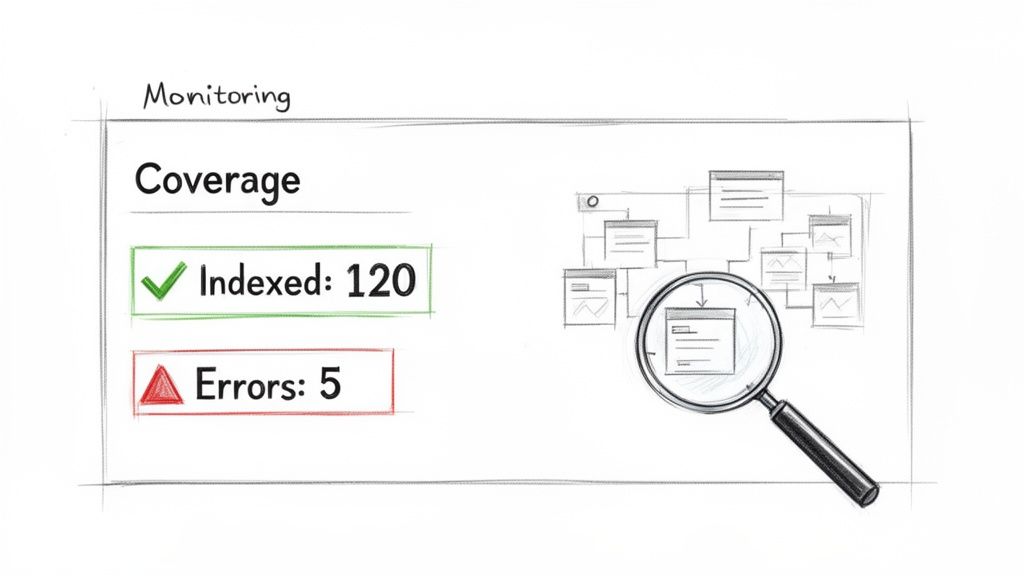
Getting your sitemap submitted is a huge win, but don't close the tab just yet. This isn't a one-and-done task; it's the beginning of an ongoing conversation with Google. The real magic happens when you start using Google Search Console (GSC) as a diagnostic tool for your website’s health. It’s your direct line to seeing exactly how Google is reading the map you just handed over.
Think of GSC as your site's personal health dashboard. It provides direct, unfiltered feedback, telling you which of your property pages have been indexed and—more importantly—which ones have been left out in the cold. This data is your secret weapon for continuously fine-tuning your SEO and driving more direct bookings.
Decoding the Coverage Report
The two reports you'll want to live in are Sitemaps and Page indexing (which you might remember as "Coverage"). The Sitemaps report is your first checkpoint; it confirms Google has processed your file, showing a "Success" status and how many URLs it found. From there, the Page indexing report tells the rest of the story.
This report breaks down every URL Google knows about into a few key categories:
- Indexed: These are your success stories. These pages are in Google's index and eligible to show up in search results.
- Not indexed: This is where the detective work begins. These pages are known to Google but aren't being shown in search results for a variety of reasons.
By digging into the "Not indexed" section, you can start troubleshooting exactly why some of your valuable pages aren't making the cut.
The goal isn't to get every single URL indexed. You want your high-value pages—your property listings, location guides, and booking pages—indexed. The unimportant stuff can be ignored.
Translating GSC Jargon into STR Solutions
When you see an error like "Crawled - currently not indexed," it can feel a bit technical. But for a vacation rental manager, this often points to a very specific, fixable problem. In plain English, it means Google saw your page but decided it wasn't valuable enough to include in its index right now.
For STR sites, this usually comes down to a few common culprits:
- Duplicate Property Descriptions: Have you copied and pasted the same description across multiple listings or even on OTAs? Google sees this as low-quality, duplicate content.
- Thin Content: A page for a local neighborhood with just a sentence or two and a couple of photos might be deemed too "thin" to offer real value to someone searching.
- Poor Internal Linking: If you just launched a brand-new property page but haven't linked to it from anywhere else on your site, it might struggle to get indexed, even if it's in the sitemap.
Fixing these issues means getting creative—writing unique, compelling content for each property and beefing up your location guides with genuinely helpful information that travelers will love.
The results are worth the effort. We've seen sites that add an XML sitemap to Google and then clean up these content issues see organic traffic spike by 15-20%. Impression Digital has documented some great sitemap success stories that dive deeper into these kinds of results.
By regularly checking GSC, you can spot these problems early, make targeted improvements, and ensure every one of your valuable pages gets the visibility it deserves. For a complete picture of your site's performance, it's also a great idea to learn about setting up a tracking code for Google Analytics to see how visitors interact with your pages once they arrive.
Unpacking Common Sitemap Questions
Even after your sitemap is submitted and humming along, a few questions always seem to pop up. It's totally normal. Getting these sorted helps you stay confident in your SEO game and understand what's actually happening behind the curtain.
Let's dig into the most common ones we hear from STR managers.
How Often Do I Need to Resubmit My Sitemap?
Here’s the good news: you only need to submit it once.
Modern website platforms—including our own hostAI—are built to be dynamic. They automatically refresh your sitemap.xml file every time you add a new property, publish a blog post, or tweak your content.
Google is smart enough to check back on this file periodically all by itself, looking for new URLs to crawl. You don't have to lift a finger. The only exception might be if you do a massive, ground-up overhaul of your entire site structure. But for day-to-day changes? It's a true "set it and forget it" task.
My Sitemap Has Errors. Should I Panic?
Seeing an error in your Google Search Console report can feel like a red alert, but don't worry—it’s usually a simple fix. The first step is to just click on the sitemap within GSC and see what specific issue Google flagged.
For vacation rental sites, one of the most frequent culprits is an invalid URL. This often happens when a property listing gets deleted, but the old link hangs around in the sitemap for a bit before the system purges it.
- If your sitemap is managed automatically (like with hostAI): Errors are pretty rare. When they do happen, they almost always resolve themselves the next time Google crawls the freshly updated file.
- If you're managing the sitemap yourself: Your best bet is to run the file through a free online sitemap validator. These tools are great at pinpointing the exact URLs causing trouble so you can remove them, upload the clean version, and get back on track.
Does a Sitemap Guarantee All My Pages Get Indexed?
This is a really important distinction to make. Submitting a sitemap guarantees that Google knows about all your pages, but it does not guarantee they will all get indexed.
Think of it like this: your sitemap is the invitation to the party. Your content is what convinces Google to come in and stay.
Ultimately, indexing comes down to quality. For an STR manager, that means:
- Writing unique, compelling property descriptions that sell the experience.
- Showcasing your rentals with high-quality, original photos and videos.
- Creating genuinely helpful local guides and blog posts that guests will love.
A sitemap gets Google to the front door, but fantastic content is what invites the crawler inside to index the page for good.
An XML sitemap is a technical file built specifically for search engines to help them crawl your website efficiently. In contrast, an HTML sitemap is a regular webpage designed for human visitors to help them easily navigate your site's structure. You need an XML sitemap for SEO; an HTML sitemap is a helpful bonus for user experience.
At hostAI, our platform automatically generates and maintains a perfect XML sitemap for you, ensuring Google always has an up-to-date map of your properties. See how we can help you boost direct bookings and grow your brand at https://gethostai.com.