

how to submit xml sitemap to google
How to Submit XML Sitemap to Google: how to submit xml sitemap to google
Posted on Jan 21, 2026
Think of submitting your XML sitemap to Google as giving the search engine a direct, personal instruction. It’s you, telling Google precisely where to find all your most important pages.
The whole process boils down to this: you find the Sitemaps report in your Google Search Console account, pop in the URL for your sitemap file (usually something like yourwebsite.com/sitemap.xml), and hit submit. That one simple click gets the ball rolling on Google's end to crawl and index your content.
Why Your Sitemap Is Your Direct Line to Google

Picture your website as a massive, sprawling city. Google's crawlers are like tourists trying to find their way around. Without a good map, they’re bound to miss the hidden gems, maybe even entire neighborhoods. Your XML sitemap is that map—a perfectly organized list of all your URLs that you hand-deliver to Google.
This isn't just a friendly suggestion; it's a clear command that says, "Hey Google, these are the pages that matter most. Please get them crawled and indexed." For a dynamic website like a short-term rental platform, this is non-negotiable. When you add a slick new property listing for a Miami villa or a cozy cabin retreat, you want it found now, not weeks from now when the booking season has passed.
Bridging the Gap to Faster Indexing
Submitting a sitemap closes the gap between creating amazing content and actually having it show up in search results. It’s a huge help for Google in discovering pages that might otherwise get overlooked, especially if your site's internal linking isn't perfect. This direct line of communication seriously speeds up the indexing process, making it an essential tool for getting seen.
For a short-term rental manager, faster indexing translates directly into more bookings. If your brand-new beachfront property page isn't in Google's index, it's completely invisible to travelers searching for their next getaway.
Let's get specific. Imagine you're a vacation rental manager using hostAI to power your direct booking site. Those beautiful property pages for beachfront villas in Miami or rustic cabins in the Rockies need to rank on Google to capture direct bookings.
It's important to know that Google has some rules: each individual sitemap file can have a maximum of 50,000 URLs and be no larger than 50MB. For hostAI users, who can easily scale to hundreds of dynamic property pages, this means you'll often need to split your URLs into multiple sitemaps, all linked from a central sitemap index file. This keeps things neat and easy for Google to process.
Setting the Stage for Success
Before we jump into the step-by-step submission, it helps to see the big picture. Everything starts in Google Search Console, a free tool that's basically your dashboard for all things search performance. And of course, for Google to process your sitemap effectively, your site needs to be reliable and fast—understanding the wider cloud computing benefits can be surprisingly helpful here.
For those who want a quick overview before diving deep, this table breaks down the core process.
Quick Guide to Sitemap Submission in Google Search Console
| Phase | Action | Key Takeaway |
|---|---|---|
| Preparation | Generate & Validate Sitemap | Ensure your sitemap is up-to-date and error-free before you even think about submitting it. |
| Submission | Add Sitemap URL to GSC | Go to the 'Sitemaps' report in Search Console and paste your sitemap.xml file link. |
| Verification | Check for 'Success' Status | Look for a green "Success" status to confirm Google has processed your sitemap correctly. |
| Monitoring | Review Indexing Coverage | After submission, use the 'Coverage' report to see how many of your submitted URLs are being indexed. |
This guide will walk you through all of this and more, setting you up for a flawless submission and, ultimately, a steady stream of organic traffic.
Preparing Your Sitemap for a Flawless Submission
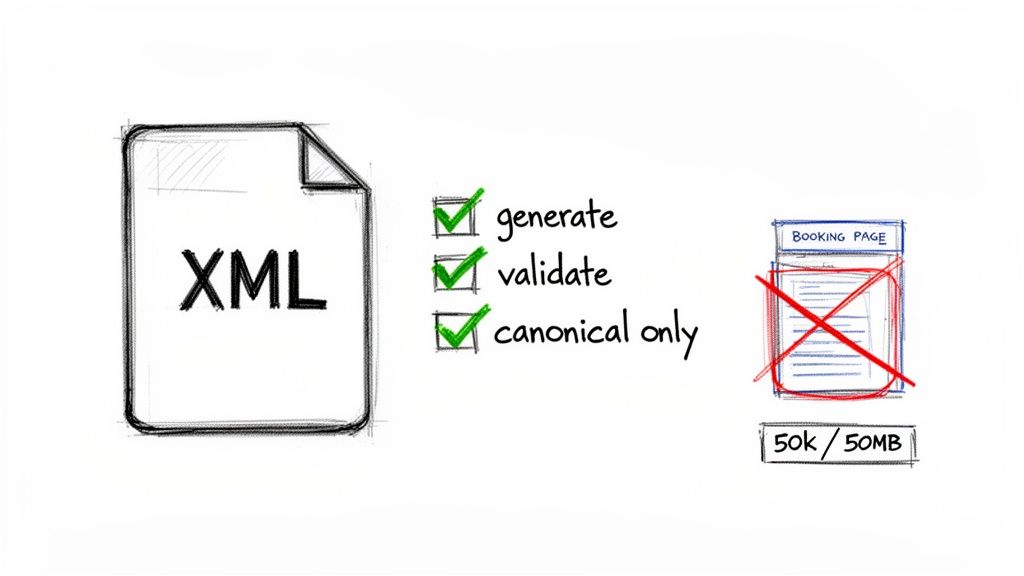
Before you hand Google your website's roadmap, you need to make sure it’s clean, accurate, and easy to follow. Think of it like this: a sloppy, confusing map will get a visitor lost. A bad sitemap does the same thing to Google's crawlers, which can lead to frustrating submission errors and indexing headaches. This prep stage is your pre-flight check, and it’s non-negotiable.
First things first, you actually have to create the sitemap file. The best way to do this really depends on how your website is built.
- WordPress Plugins: If you're on WordPress, you're in luck. Tools like Yoast SEO or Rank Math are game-changers. They handle the heavy lifting by automatically generating and updating your sitemap for you. You can usually find it right at
yourwebsite.com/sitemap.xml. - Built-in Platform Tools: Many website builders, especially those tailored for short-term rentals, come with their own sitemap tools. It's worth digging into your platform's help docs to find out where your sitemap lives.
- Online Generators: For simpler static sites or custom-built websites, an online generator like XML-Sitemaps.com is a great option. It’ll crawl your site and spit out a file you can upload directly to your server.
But just having the file isn't enough. The real magic—and where most people go wrong—is in the quality of the URLs you put inside that file.
Curating Your URL List
Treat your sitemap like a VIP guest list for Google. You only want your most valuable, important pages on there. A bloated sitemap crammed with duplicate content, admin pages, or irrelevant URLs just wastes Google's time and crawl budget. It can even water down the authority of the pages you actually care about.
This means you need to be a ruthless curator. For a vacation rental site, this is critical. You absolutely want your high-value property listing pages included, but you should exclude things like internal booking confirmation pages or expired promotional landing pages. Your goal is to give Google a pristine, canonical list of pages you want indexed and ranked.
A huge mistake I see all the time is including non-canonical URLs. If you have several versions of the same page (maybe with different tracking parameters in the URL), your sitemap must point only to the single, primary version. Anything else just confuses search engines.
Having a solid grasp of your site's architecture is a big help here. If you want to go deeper, learning about the various stages in website development can shed some light on how a good site structure is built, which directly influences your sitemap.
Respecting the Limits
Google has a few hard-and-fast rules. A single sitemap file can’t have more than 50,000 URLs, and it can't be larger than 50MB (uncompressed). While your average small business site won't get anywhere near these numbers, a large vacation rental platform with thousands of listings could hit that ceiling pretty quickly.
So, what happens if you go over? You simply create a sitemap index file. This is basically a sitemap of your sitemaps. It's one file that points to all your other individual sitemap files, letting you keep everything organized and well within Google’s guidelines. For any large, complex website, this is the standard way to do it.
Once you’ve generated the file, curated your URLs, and checked your limits, you're ready for the main event: submission. Getting this prep work right is the key to making the whole process go smoothly.
Your Guide to Submitting Through Google Search Console
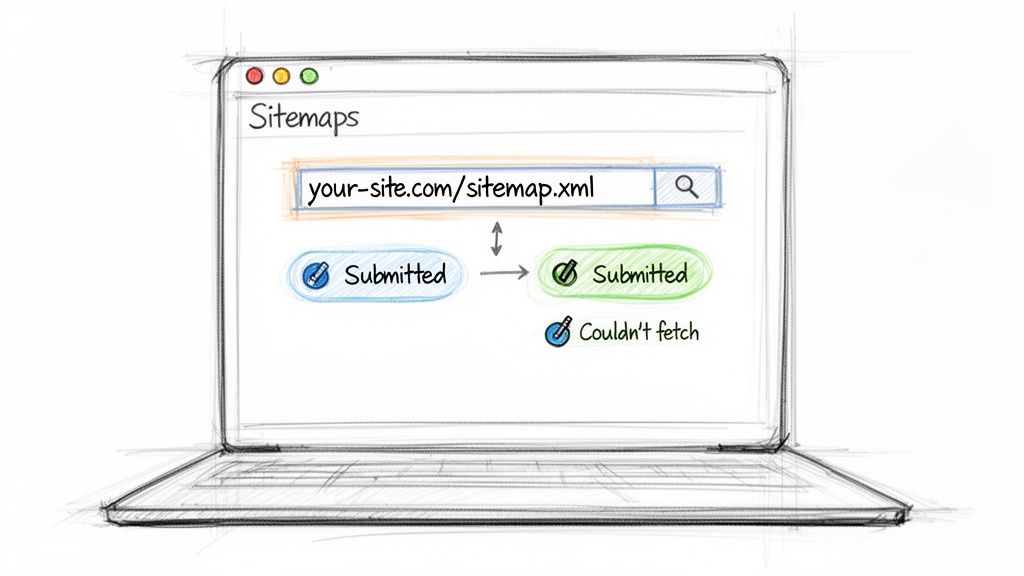
Alright, you've got your sitemap polished and ready to go. Now it's time to hand it over to Google. This is the moment you officially give the search engine a direct map of your site's structure, and it all happens inside Google Search Console (GSC).
Think of GSC as your command center for all things Google search. Assuming you've already verified your website property, finding your way around is pretty simple. They've designed the interface to be clean and direct, so you won't get lost.
Locating the Sitemaps Report
Once you're logged into your GSC account, cast your eyes over to the left-hand navigation menu. Look for the "Indexing" section, and right under it, you'll see a link for Sitemaps. That's where you need to go.
Clicking this takes you to the main sitemaps dashboard. If you've submitted one before, you'll see a list of your previous submissions and their status. If you're new to this, the space will be empty, just waiting for you to add your file.
Adding Your New Sitemap
At the top of the Sitemaps page, there's a field labeled "Add a new sitemap." This is where the magic happens. Your website's domain is already filled in for you, so all you have to do is type in the final part of the URL.
For most sites, it's going to be one of these:
sitemap.xmlsitemap_index.xml
If you're running a short-term rental site, you might have an index file that points to different sitemaps for your villas, cabins, and city apartments. In that scenario, just submit the main sitemap_index.xml file. Google is smart enough to find the other sitemaps linked inside it.
After you've entered the file name, hit that blue Submit button. And that's it! You've officially handed Google the roadmap to your content. Ever wonder why some STR sites get discovered quickly while others seem to languish? Getting this simple step right is often a big part of the puzzle. Once you submit, GSC gets to work, though it can take anywhere from a few hours to a few days for a full crawl, depending on your site's size. For more on this, there’s a good discussion about sitemap processing times on Moz.com.
Pro Tip: Don't stress if you don't see all your pages indexed overnight. Submitting the sitemap is just step one. Google still has to schedule its crawlers, process the content, and then decide what to add to its index.
Understanding the Status Messages
After you submit, GSC will give you a status message. This is your confirmation that the file was received and is being processed.
Here’s a quick breakdown of what those common statuses actually mean for you:
| Status | What It Really Means | Your Next Step |
|---|---|---|
| Success | Google found your file, read it without any issues, and has added your URLs to its to-do list for crawling. | Perfect! Now you can shift your focus to monitoring your site's indexing coverage. |
| Couldn't fetch | Google tried to grab your sitemap but ran into a wall. This is usually a typo in the URL or a server hiccup. | Double-check the URL you entered. Also, make sure your robots.txt file isn't accidentally blocking Googlebot from seeing the sitemap. |
| Has errors | Google accessed the file, but something inside is broken. The XML has formatting mistakes that are preventing it from being read correctly. | Time to troubleshoot. Run your sitemap through a validator tool to pinpoint and fix the syntax errors. |
Seeing that green "Success" message is what you're aiming for. It's the signal that your direct line to Google is open, paving the way for faster discovery and better indexing for all your pages.
Let Automation Handle Your Sitemap Submissions
Manually submitting your sitemap in Google Search Console is a good start, but it’s not the most efficient way to run your business, especially if your site is constantly changing.
For a short-term rental business, new listings pop up, availability shifts, and blog posts go live all the time. Real efficiency comes from automation—getting things set up so Google knows about your changes without you ever having to log in.
There are two powerful, low-effort ways to keep search engines in the loop. These methods work quietly in the background, making sure crawlers always have a fresh map of your site. This is absolutely critical for sites that scale content quickly, a core idea we dive into in our guide to what is programmatic SEO. Adopting these automated approaches means your newest, most valuable pages get found faster.
Use Your Robots.txt File as a Signpost
One of the simplest and most overlooked methods is to reference your sitemap directly in your robots.txt file. Think of this file as the first stop for any search engine crawler visiting your site. By adding a single line, you're leaving a clear, permanent signpost for any bot that comes knocking.
It's a straightforward instruction:
Sitemap: https://www.yourwebsite.com/sitemap.xml
Just pop that line into your robots.txt file, swapping out the example URL with your actual sitemap location. This tells Google, Bing, and other search engines exactly where to find your complete list of URLs every single time they visit.
Here's what a simple robots.txt file looks like with the sitemap directive included.
This tiny addition ensures that even if you forget to resubmit your sitemap manually, crawlers will always be pointed in the right direction.
Ping Google Directly After Updates
For a more immediate heads-up, you can use the "ping" method. This technique sends an automated request to a specific Google URL, essentially telling it, "Hey, my sitemap just changed. Come take a look."
It's the perfect solution for dynamic sites. For instance, when your system adds a new vacation property, a script can automatically "ping" Google to let it know.
The URL format is clean and simple:
http://www.google.com/ping?sitemap=https://yourwebsite.com/sitemap.xml
You can even test this yourself right now. Just paste that URL into your browser, replace the example with your own sitemap link, and hit enter. If it works, you’ll get a "Sitemap notification received" message. That’s your confirmation that the signal was sent successfully.
Many content management systems and SEO plugins already have features to do this automatically whenever you publish new content. If you have a custom-built site, your developer can easily script this action to trigger after any important update.
By combining the robots.txt reference with automated pings, you create a powerful system that keeps Google constantly in the loop, closing the gap between when you update your content and when it gets discovered.
Decoding GSC Reports and Fixing Common Errors

Getting your sitemap submitted isn't the finish line; it’s really just the starting pistol. Now the real work begins: figuring out what Google Search Console (GSC) is trying to tell you about your site. This is where you pivot from simply submitting a file to analyzing the data to make sure your efforts actually improve your indexing.
The Sitemaps report inside GSC will be your home base for this. If everything went smoothly, you’ll see a green "Success" status. More importantly, you'll see a number next to "Discovered URLs." This is Google's way of saying, "Okay, I've seen these pages you sent me."
Discovered vs. Indexed URLs
Seeing a big number of discovered URLs is a great first step, but it’s only half the story. The metric that truly matters is how many of those pages get indexed. You’ll find that data in the "Coverage" report.
Here’s the simple breakdown:
- Discovered: Google knows the URL exists, thanks to your sitemap.
- Indexed: Google has crawled the page, decided it's worthy, and added it to its massive search database. Only indexed pages can show up in search results.
It's perfectly normal for these two numbers to be different. Google is picky and won't index every single page you throw at it. Your goal is a healthy ratio where the vast majority of your important URLs make the leap from discovered to indexed.
For a well-structured site, you should aim for 100% of your submitted URLs to be discovered. From there, a good indexing rate for quality content is anywhere from 80-95%. If you see a big gap, it's often a red flag pointing to problems like 404 errors or syntax mistakes in your sitemap file.
Common Sitemap Errors in GSC and How to Fix Them
Of course, sometimes things just don't work. Instead of a reassuring green "Success" message, you might be greeted with a splash of red and an error. Don't panic. Most of these issues are surprisingly easy to fix.
Think of a sitemap error as a direct, free message from Google telling you exactly what’s broken. It’s the kind of actionable feedback that SEO agencies charge thousands for. Paying attention to these warnings is one of the fastest ways to boost your site's technical health.
When you see an error in GSC, it's an opportunity to get things right. Here are some of the most common errors you'll run into and what to do about them.
Common Sitemap Errors in GSC and How to Fix Them
| Error Message | What It Means | How to Fix It |
|---|---|---|
| Sitemap could not be read | Google tried to grab your sitemap file but couldn't. This usually means there's a typo in the URL, a server issue, or your robots.txt file is blocking Google's crawler. |
Double-check that the sitemap URL is correct and loads in your browser. Look at your server's status and make sure robots.txt isn't blocking Googlebot from accessing the file. |
| XML format error | The file itself is malformed. You might have a missing tag, a special character like an ampersand (&) that isn't properly escaped, or some other syntax glitch that makes the file unreadable. | The quickest fix is to copy your sitemap's code and paste it into an online XML validator. The tool will flag the exact line with the mistake so you can correct it, save the file, and re-upload. |
| URLs not accessible | Google successfully read the sitemap but couldn't reach the pages listed inside it. This typically happens if your pages are password-protected, behind a firewall, or simply return a 404 "not found" error. | Take a few of the affected URLs and plug them into GSC’s URL Inspection tool. It will tell you precisely why Google can't access them, so you can address the root cause, whether it's a broken link or a server misconfiguration. |
Nailing down these technical issues is key to helping Google process your content efficiently. But remember, technical health is just one piece of the puzzle. To see the full picture, you also need to understand how users are interacting with your site. You can get started by learning how to add a tracking code for Google Analytics.
Sitemap Submission: Your Questions Answered
Alright, so you've submitted your sitemap to Google Search Console. That's a huge step, but it's often where the real questions start popping up. Getting the sitemap file over to Google is one thing, but figuring out what happens next is what separates a good SEO strategy from a great one.
Let's dig into some of the most common questions I hear from STR operators after they hit that "submit" button.
How Often Do I Need to Resubmit My Sitemap?
There's this myth floating around that you need to go into GSC and manually resubmit your sitemap every time you add a new property listing or tweak a page. Thankfully, that's not the case.
If you're using a modern CMS or a dynamic sitemap generator, it handles the updates for you. Google is smart enough to re-crawl your sitemap on its own schedule. Forget about it for your day-to-day changes.
So, when should you manually resubmit? Only in a couple of specific situations:
- After a massive site change: If you just launched a full redesign or completely re-organized your site's structure, give Google a nudge.
- When you've fixed errors: If GSC flagged a bunch of issues and you've just finished cleaning them up, resubmitting tells Google it's time for a fresh look.
For everything else, let the automation do its job.
Does a Sitemap Guarantee My Pages Will Rank on Google?
This is a big one. Submitting a sitemap does not guarantee your pages will rank. Not even a little bit.
Think of your sitemap as handing Google a map to your properties. It tells Google's crawlers, "Hey, here are all my pages, please come take a look." It's a tool for discovery and indexing, not ranking.
Getting your pages to the top of search results depends entirely on other factors—the quality of your property descriptions, your site's loading speed, getting good backlinks, and creating a fantastic user experience. The sitemap gets you in the door; your content quality is what makes you the life of the party.
What if Google Says My URLs Are "Discovered" but "Not Indexed"?
Seeing a long list of pages under the "Discovered - currently not indexed" status in your GSC Coverage report can feel like a punch to the gut. Don't panic. It's usually not a five-alarm fire.
This status simply means Google knows the page exists but has decided not to crawl and index it… yet.
The usual suspect here is what Google calls "crawl budget." Google only has so many resources to crawl the entire internet. It prioritizes what it thinks is high-value content. If it sees your new pages as low-priority, it will put them on the back burner.
Your mission is to convince Google that these pages are worth its time. Go back and beef up your internal linking, pointing to these undiscovered pages from your most important content (like your homepage or popular blog posts). Make sure the pages load lightning-fast and that the content is unique and genuinely useful.
A little patience goes a long way, too. Sometimes it just takes a few weeks for Google to circle back.